Remote Desktop Assistance

Please download the appropriate installation file for your operating system to allow our IT Department to establish a remote desktop connection with your computer.

Select the corresponding link below to start the download.


Windows Logo Download for Windows macOS Logo Download for macOS
Windows Installation Steps

  1. Open "dwagent.exe" file to begin installation.

    Step 1 Screenshot
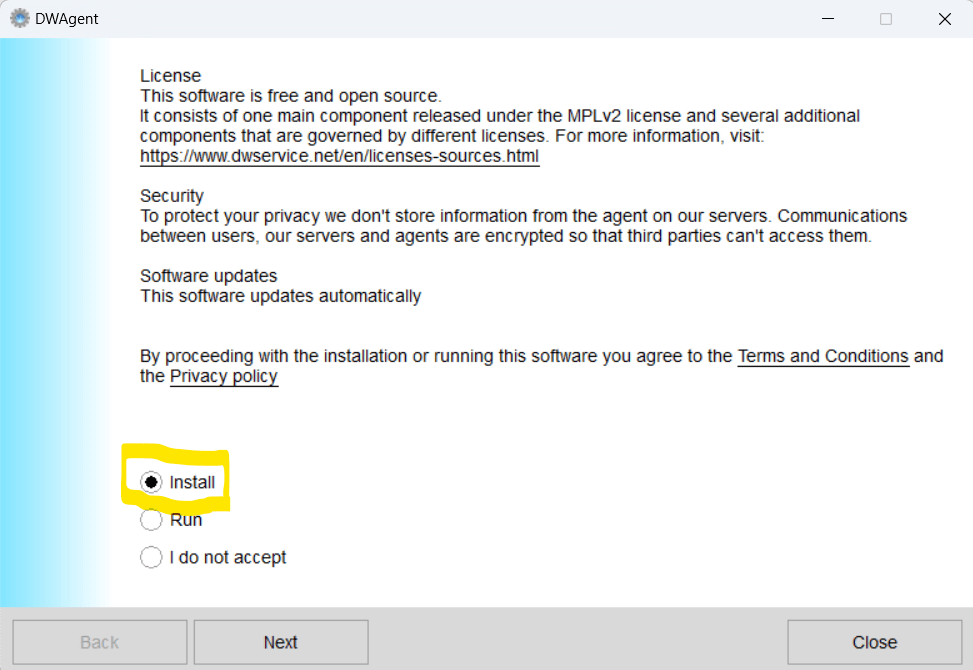
  2. Select "Install" and click "Next".

    Step 2 Screenshot
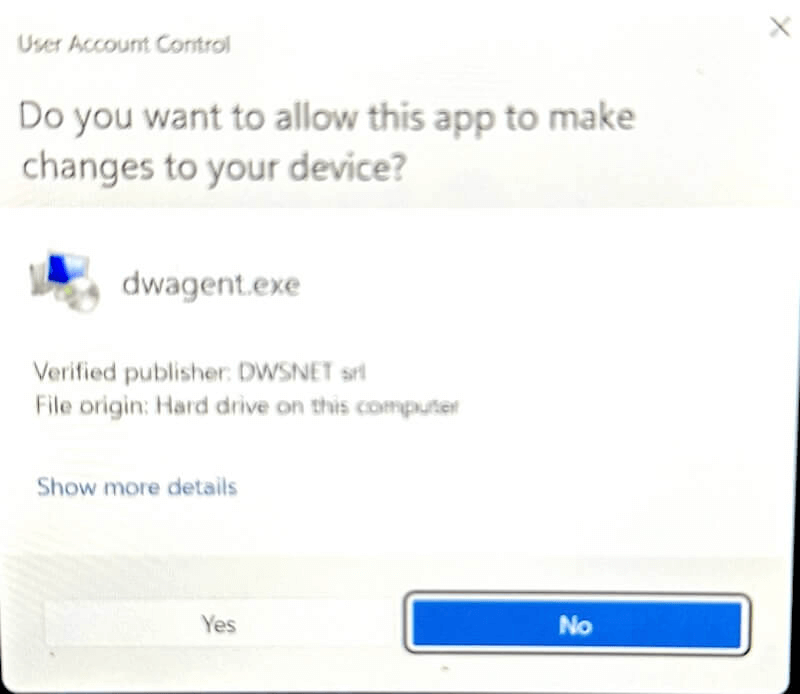
  3. Click "Yes" to allow this app on your device.

    Step 3 Screenshot
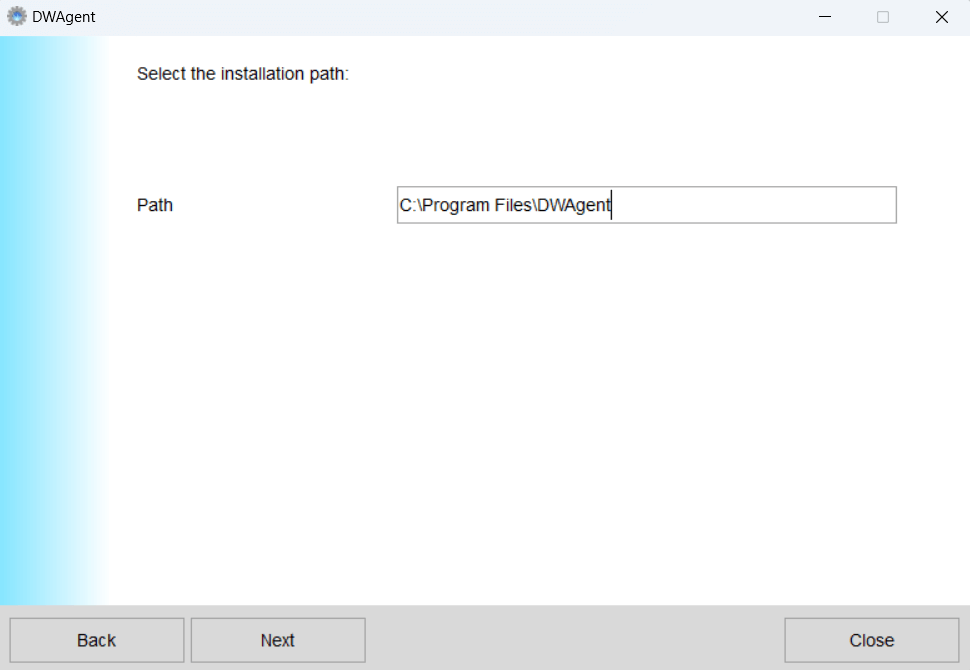
  4. Click "Next" to keep the default installation path.

    Step 4 Screenshot
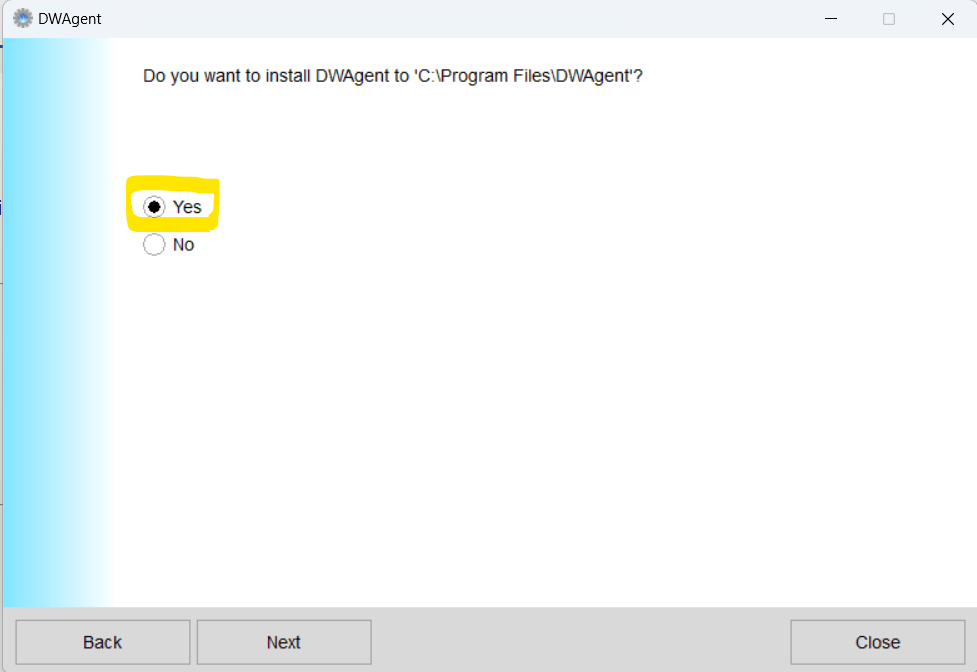
  5. Click "Yes" to install.

    Step 5 Screenshot
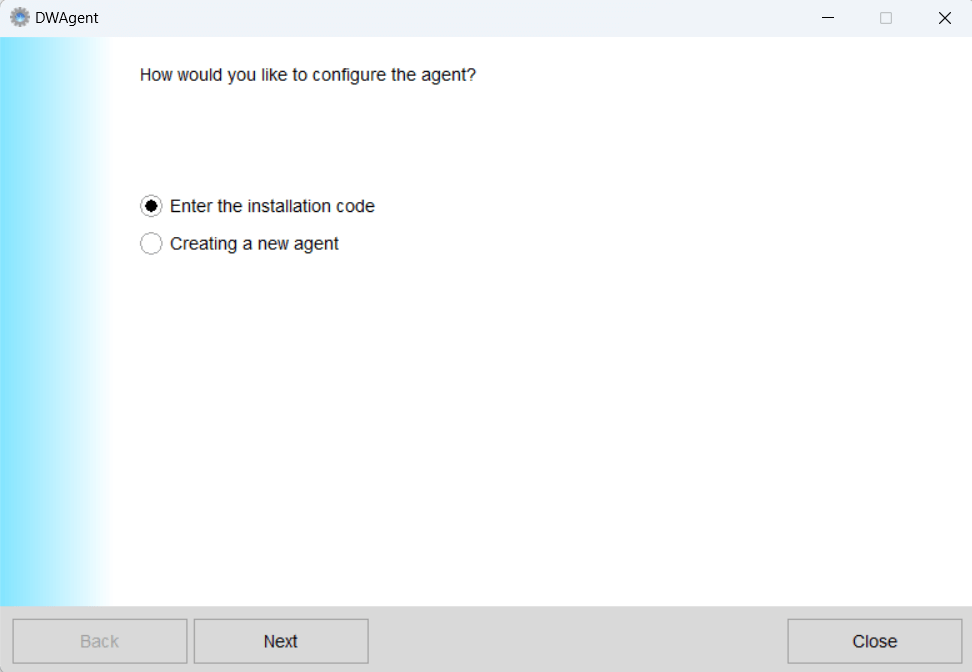
  6. Click "Next" to enter the installation code provided by your IT department.

    Step 6 Screenshot
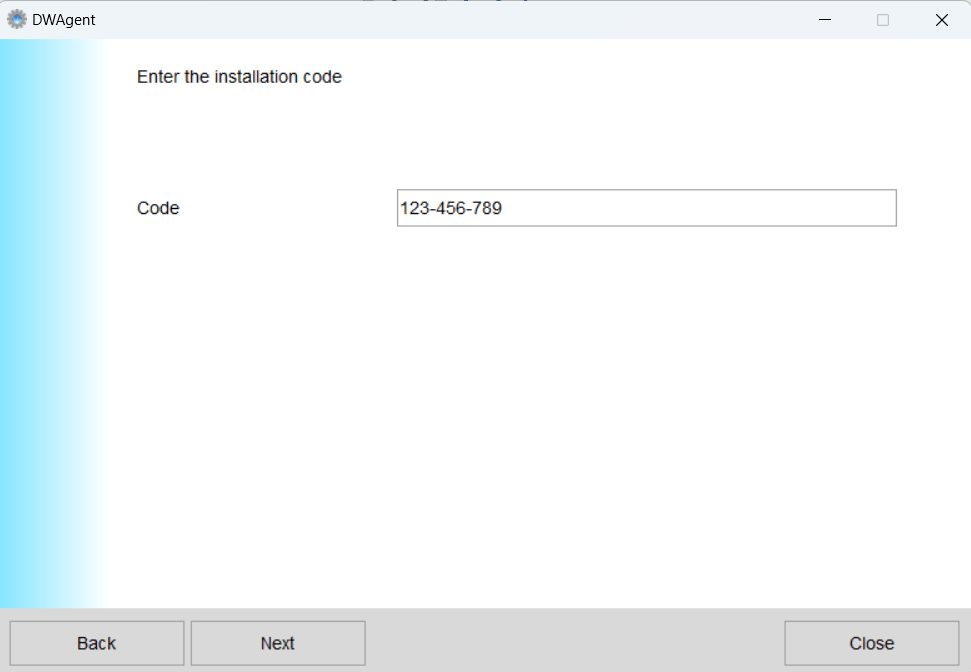
  7. Enter the installation code provided by your IT department. Click "Next".

    Step 7 Screenshot
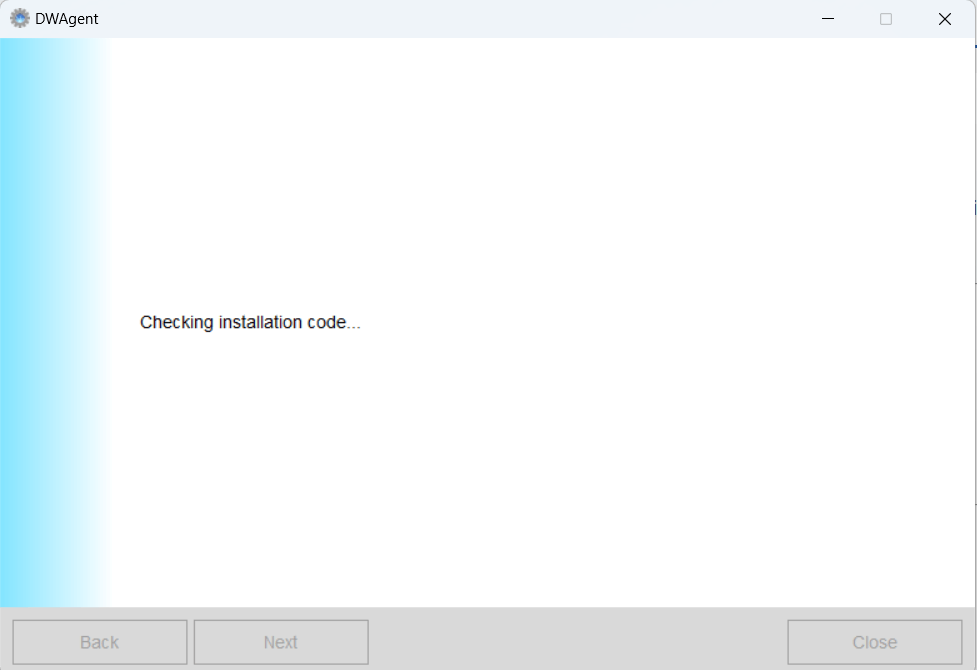
  8. Wait for the installation to complete.

    Step 8 Screenshot
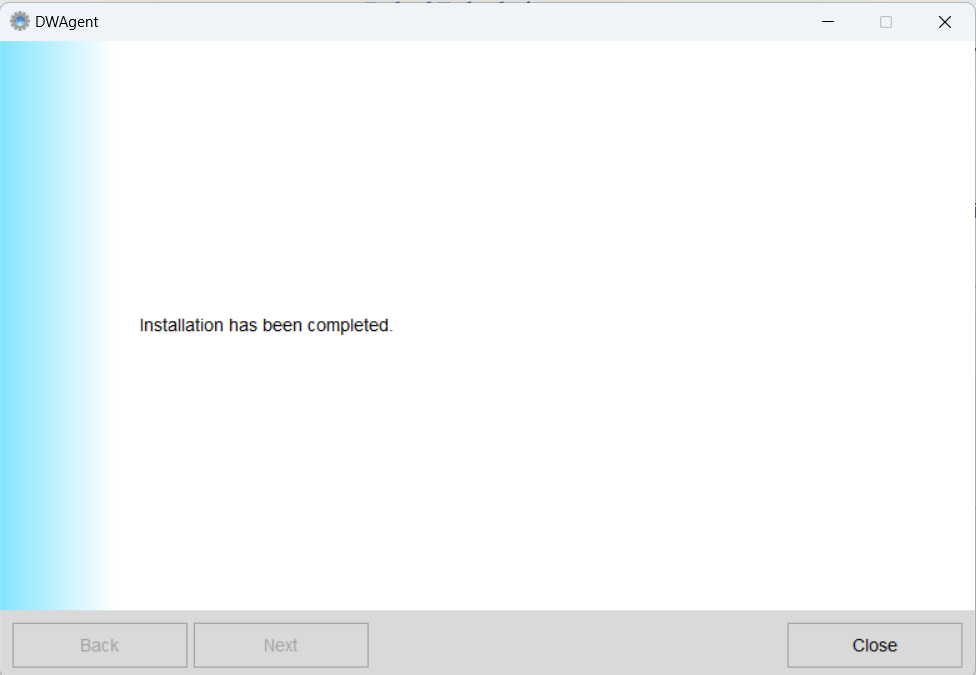
  9. Click "Close" when "Installation has been completed."

    Step 9 Screenshot

macOS Installation Steps

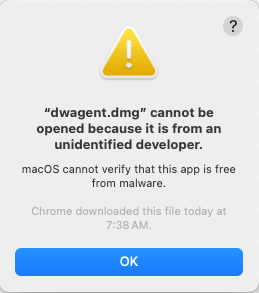
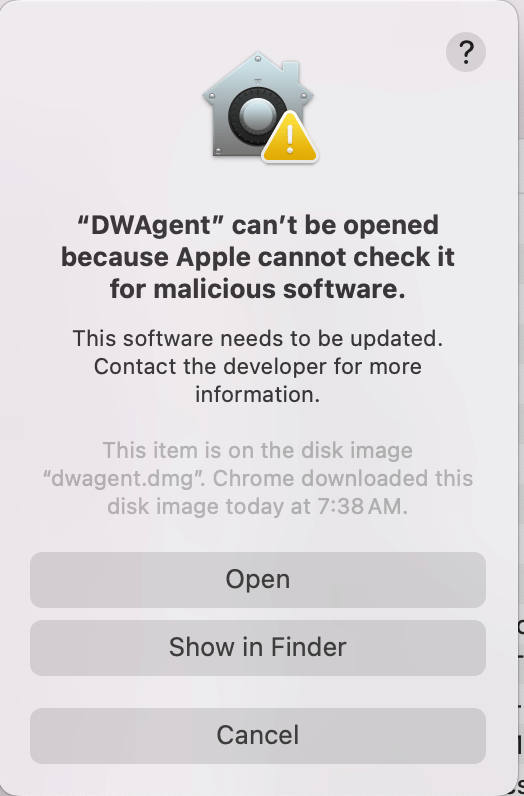
  1. By default, macOS will prevent automatically opening any remote access software. If you try to open the downloaded file by "double clicking" on it, you will see the screen below which will not allow the file to open.

    Initial Alert

    Block Message

    Instead, go to your 'Download' folder (or the folder where the file was downloaded), right click on the file and click "Open".

    Right Click Open

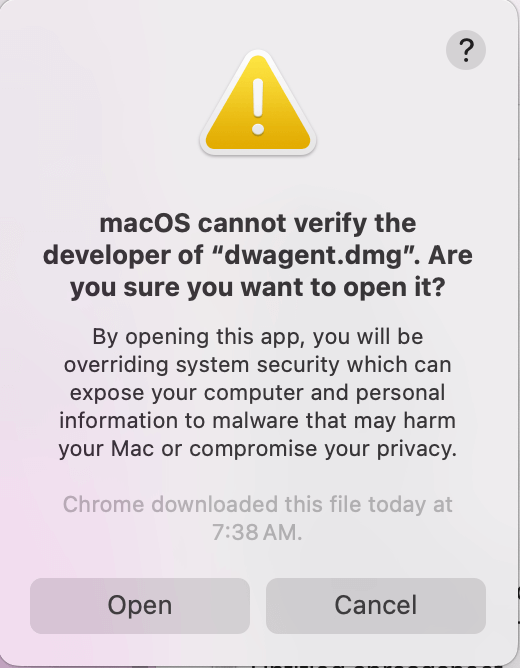
    You will now see the following window where you can click "Open".

    Confirmation Dialog
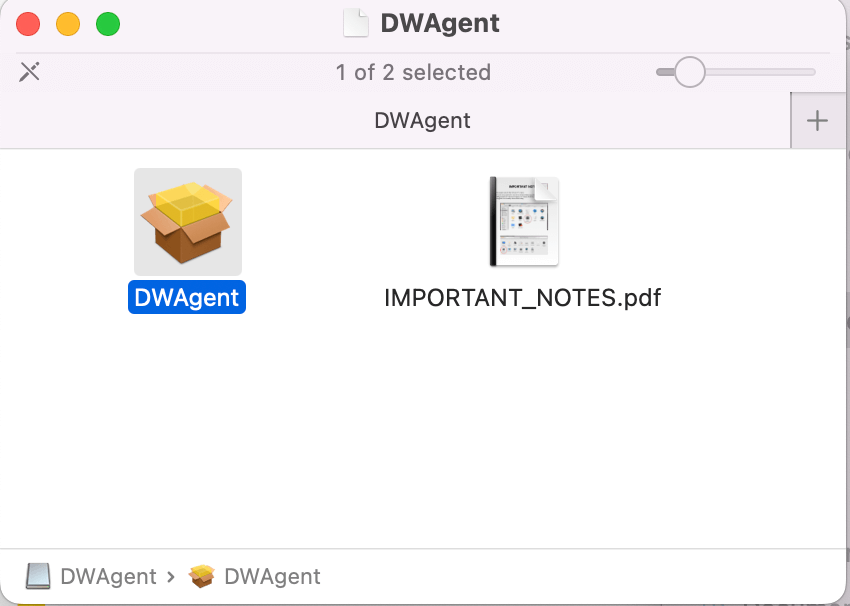
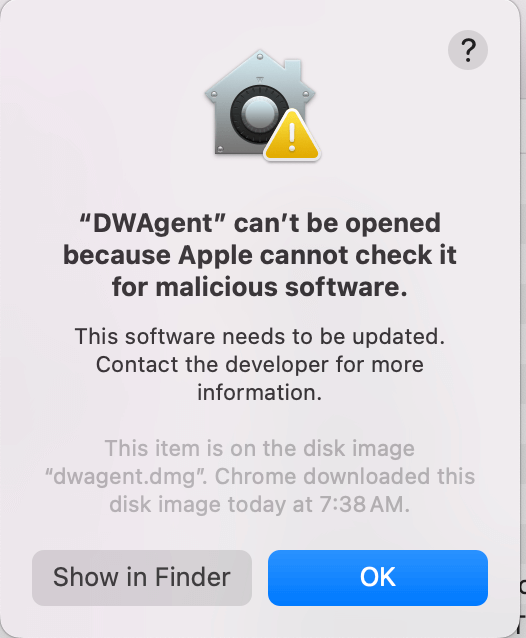
  2. Once the virtual disk is opened to install the software, macOS will also prevent "double clicking" the file to install it.

    Disk Image Warning

    Additional Warning

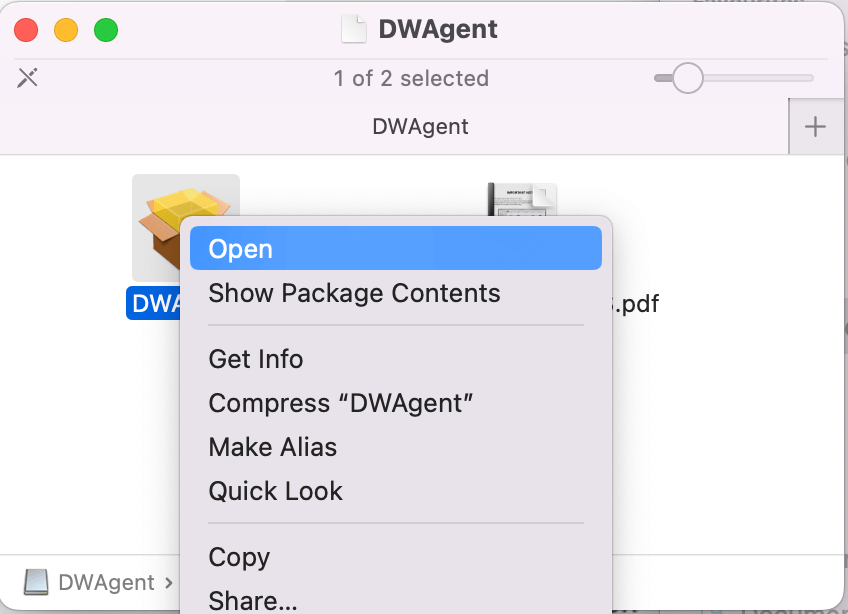
    Instead, right click on the "DWagent" pkg file and click "Open".

    Right Click on PKG

    Then, click "Open" again to confirm.

    Open Confirmation Dialog
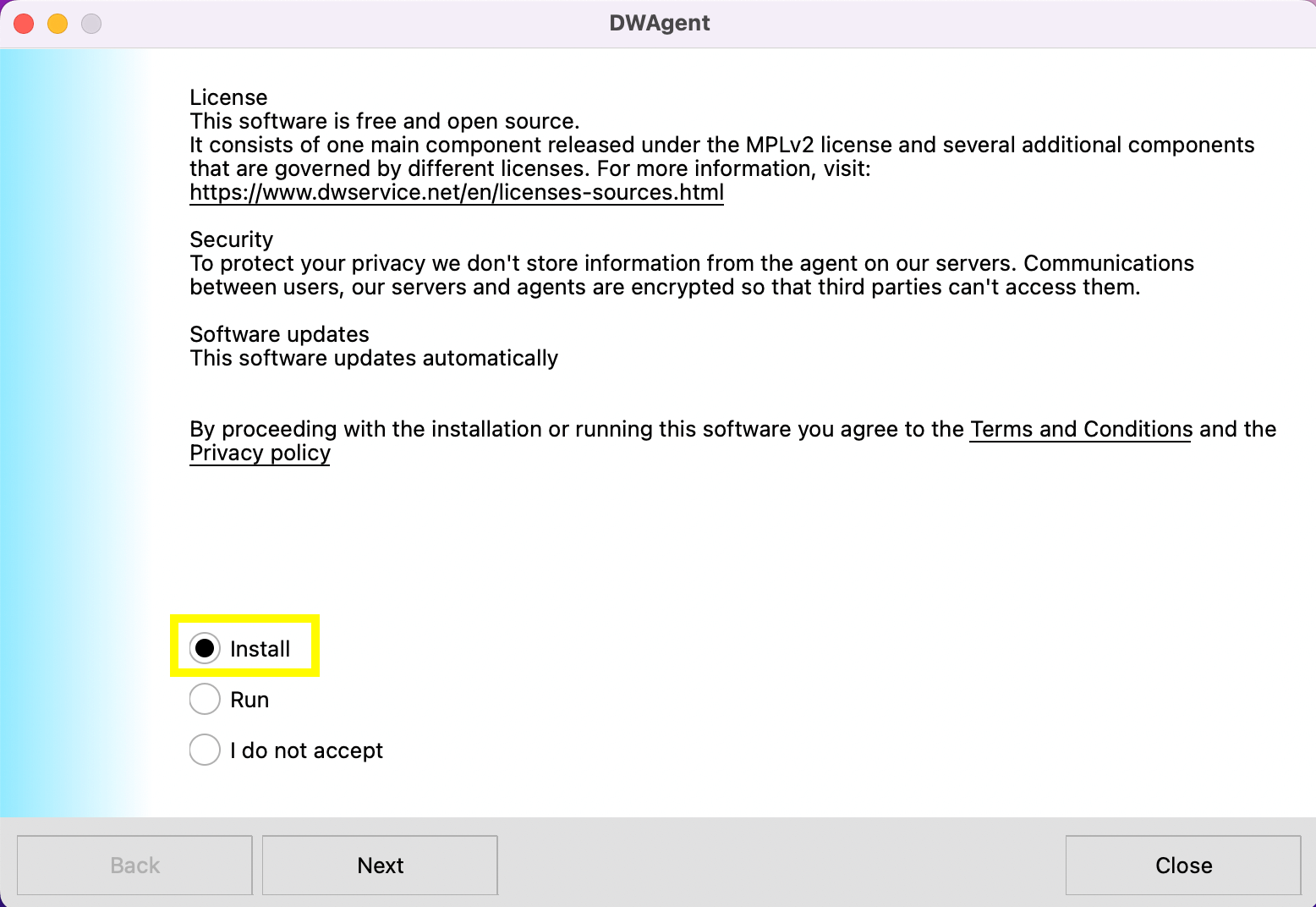
  3. Select "Install" and click "Next".

    Installation Start

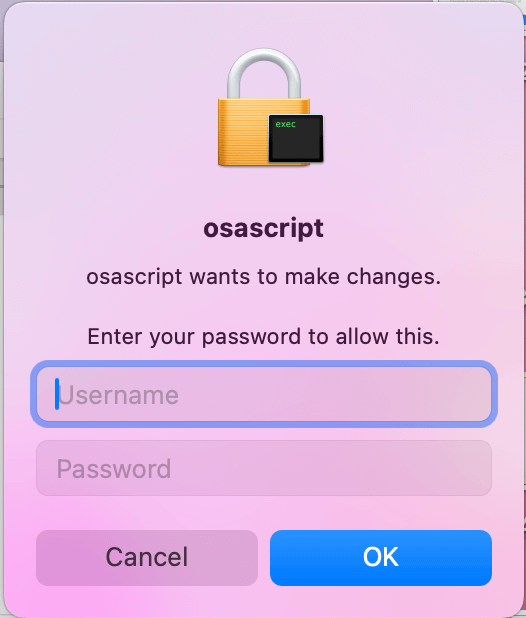
    You will be requested to enter your Username and Password. This is the name of your computer and the password you use to log into your macOS computer.

    Admin Credentials Request
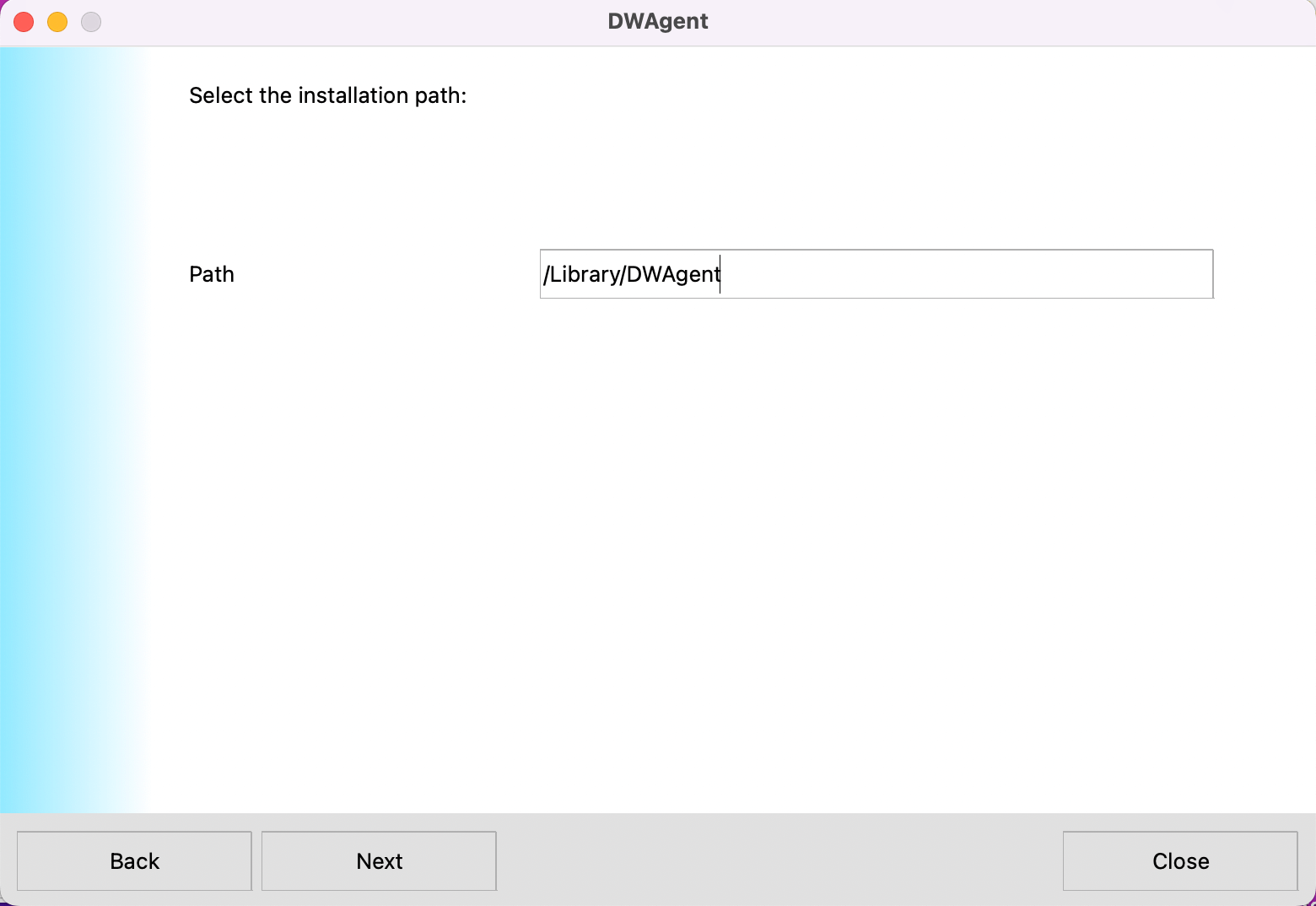
  4. Click "Next" to keep the default installation path.

    Default Path Confirmation
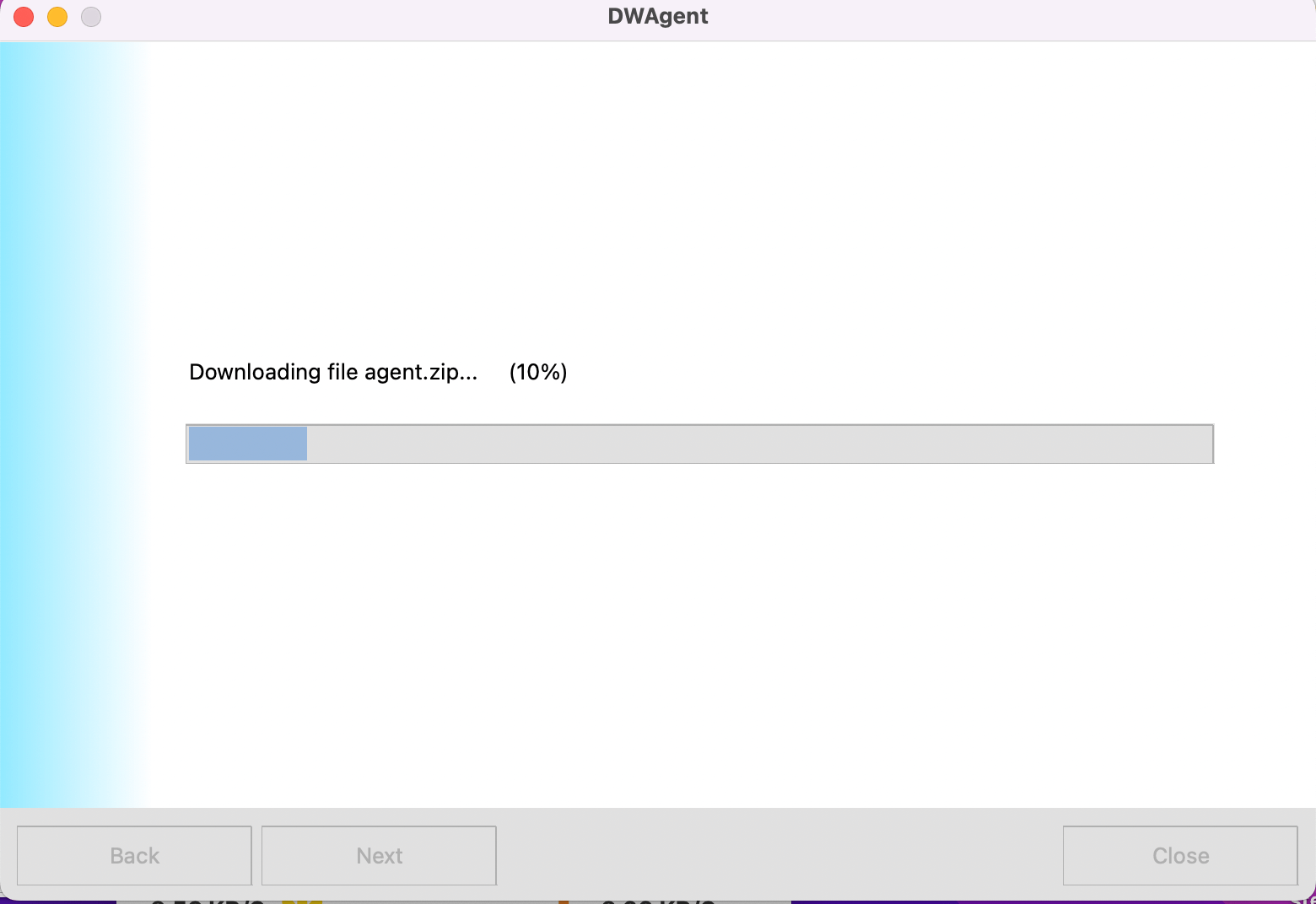
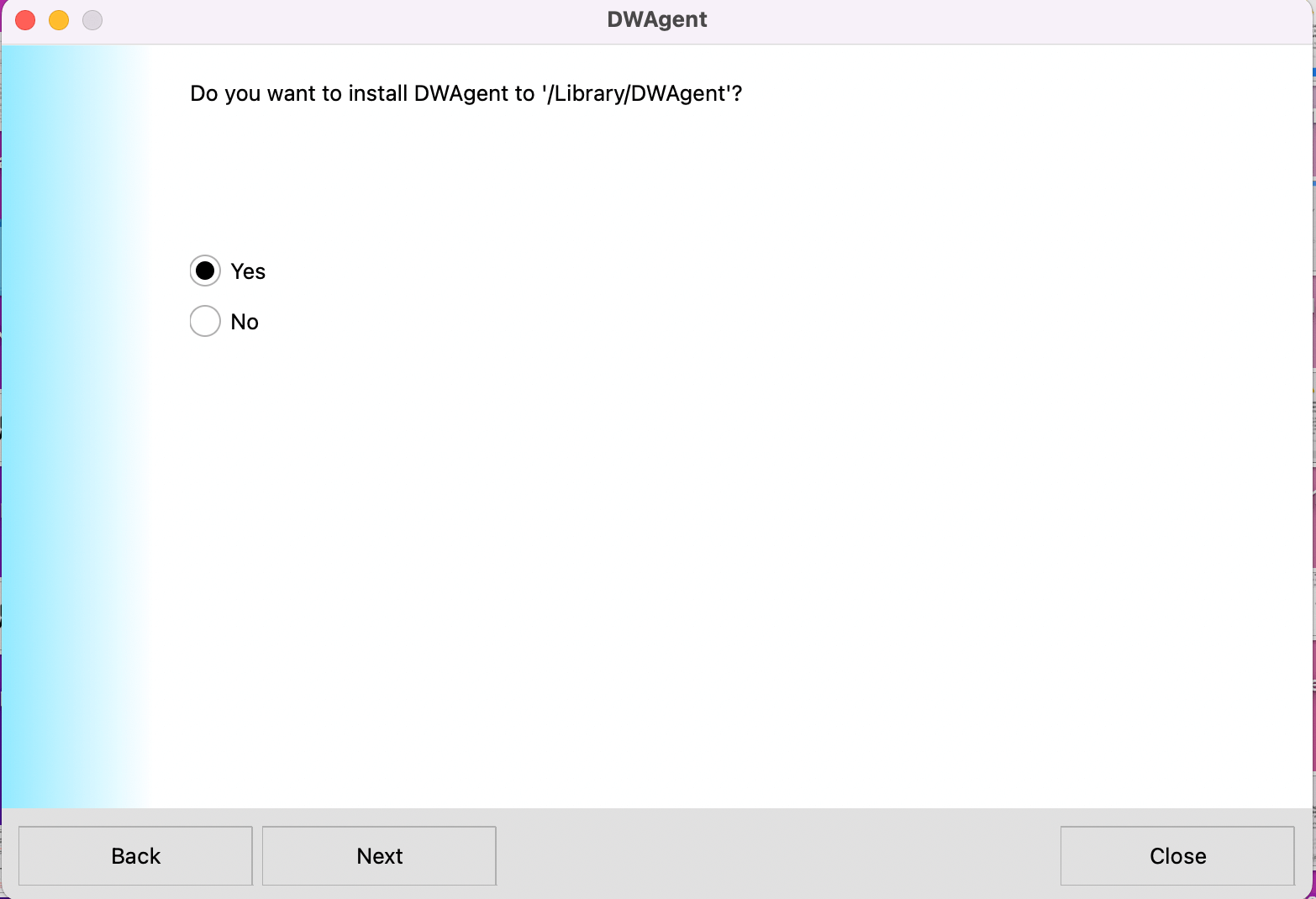
  5. Click "Yes" to install.

    Install Confirmation

    Further Confirmation
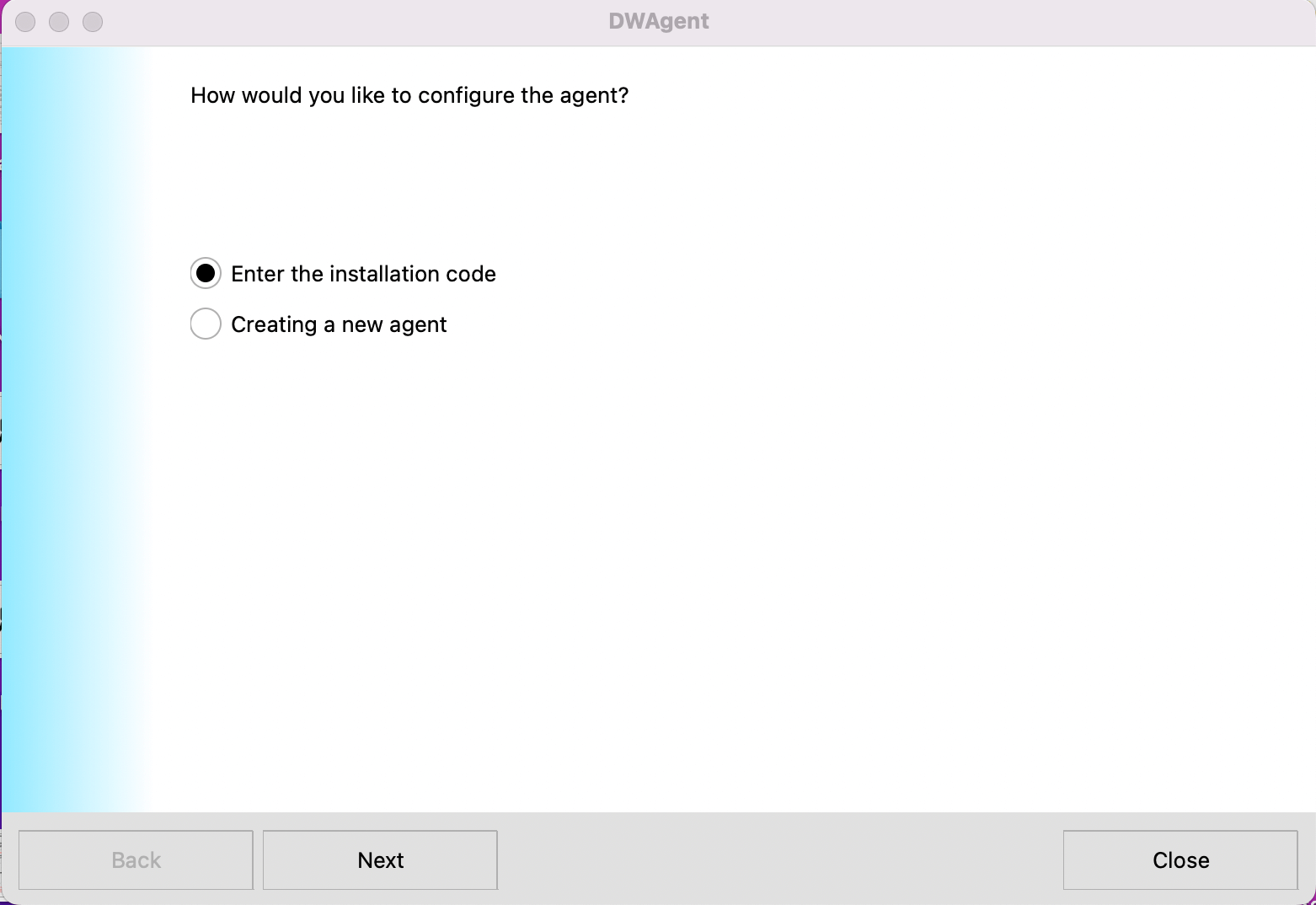
  6. Click "Next" to enter the installation code provided by your IT department.

    Enter Installation Code
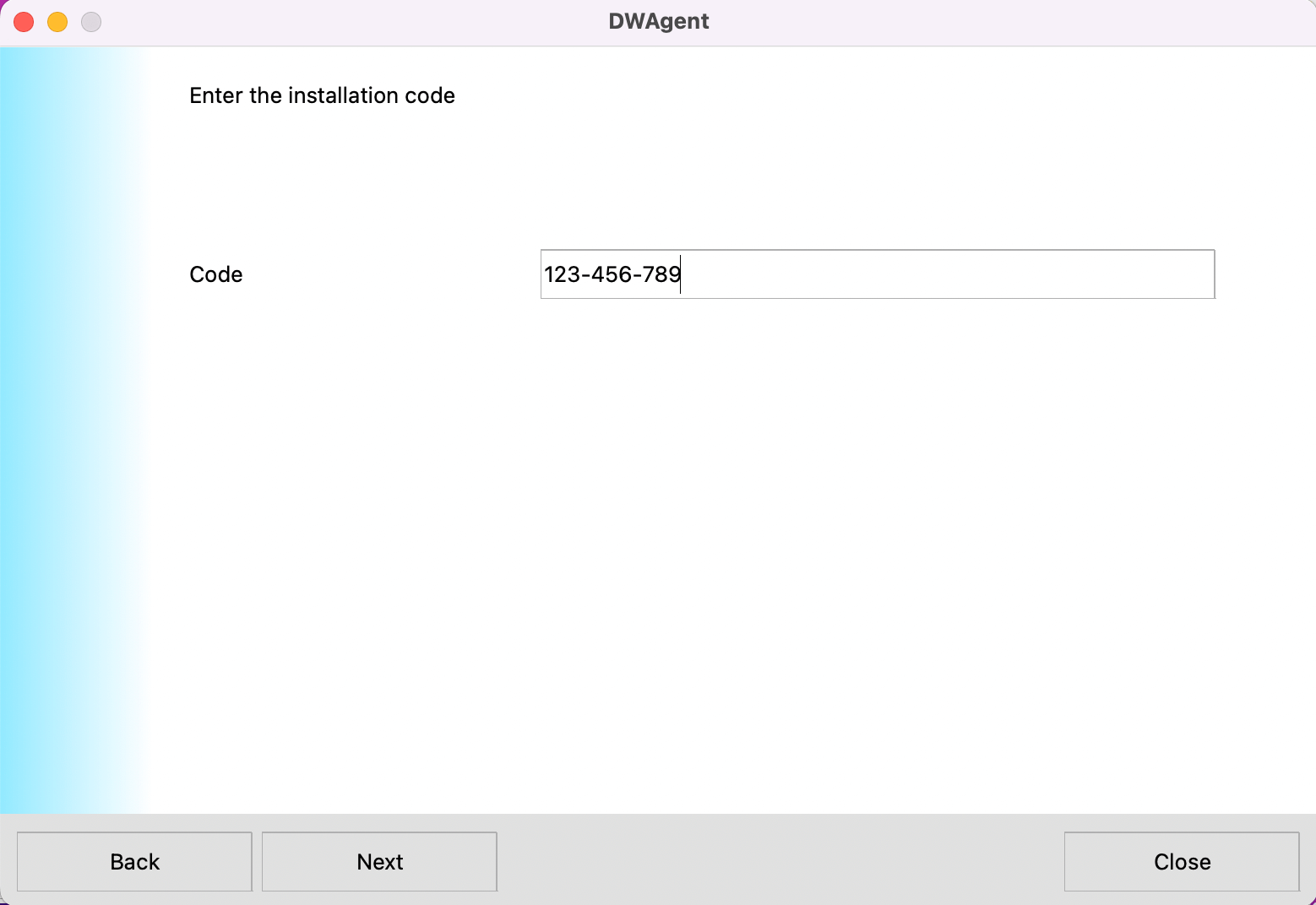
  7. Enter the installation code provided by your IT department. Click "Next".

    Code Verification
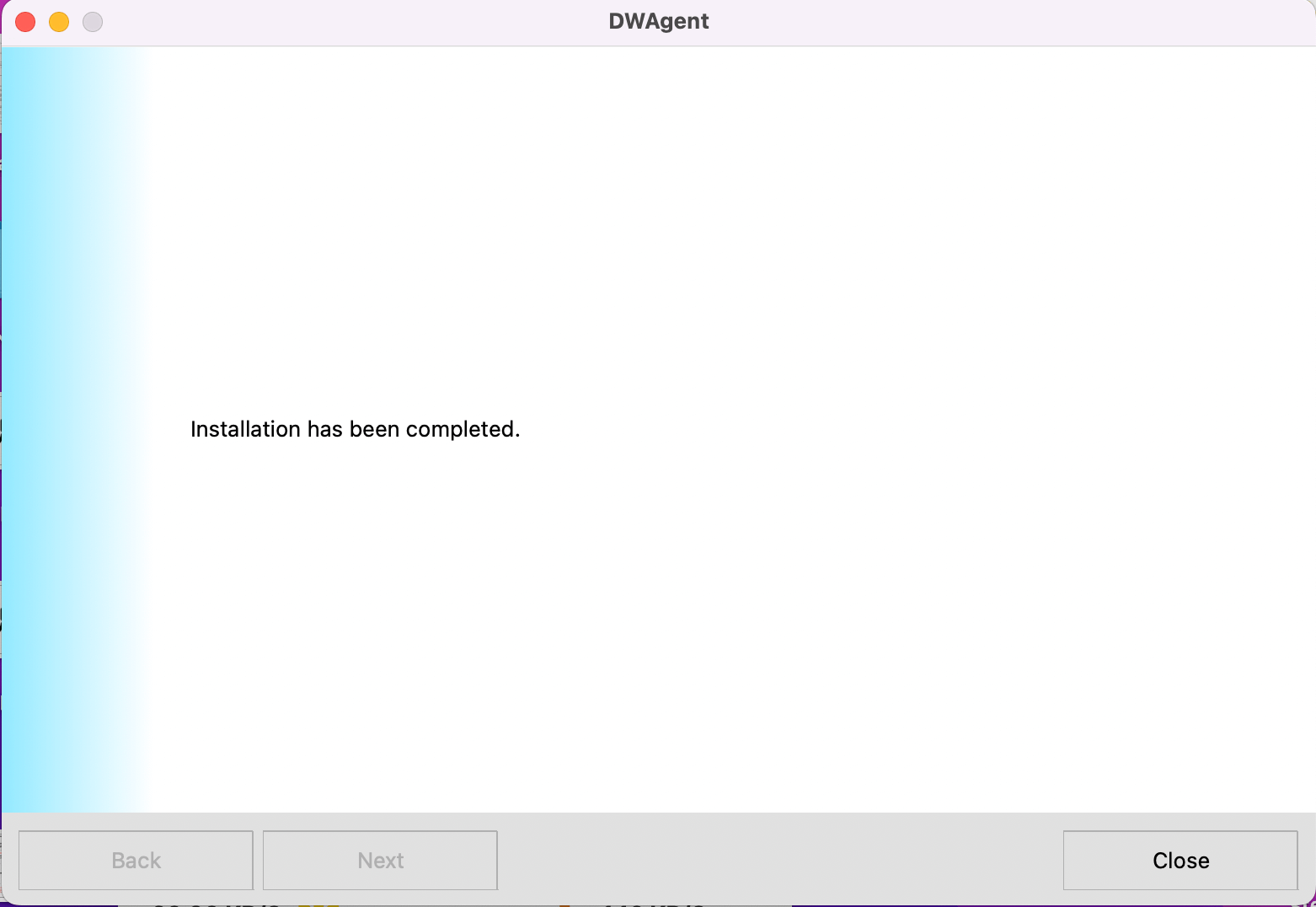
  8. Click "Close" when "Installation has been completed."

    Installation Complete